
11 Networking Concepts Explained in 11 Minutes
Learn 11 essential networking concepts every software engineer should know, from IP addresses and DNS to TCP/IP, routers, firewalls, and cloud networking. Understand how networks work with simple explanations and real-world examples.
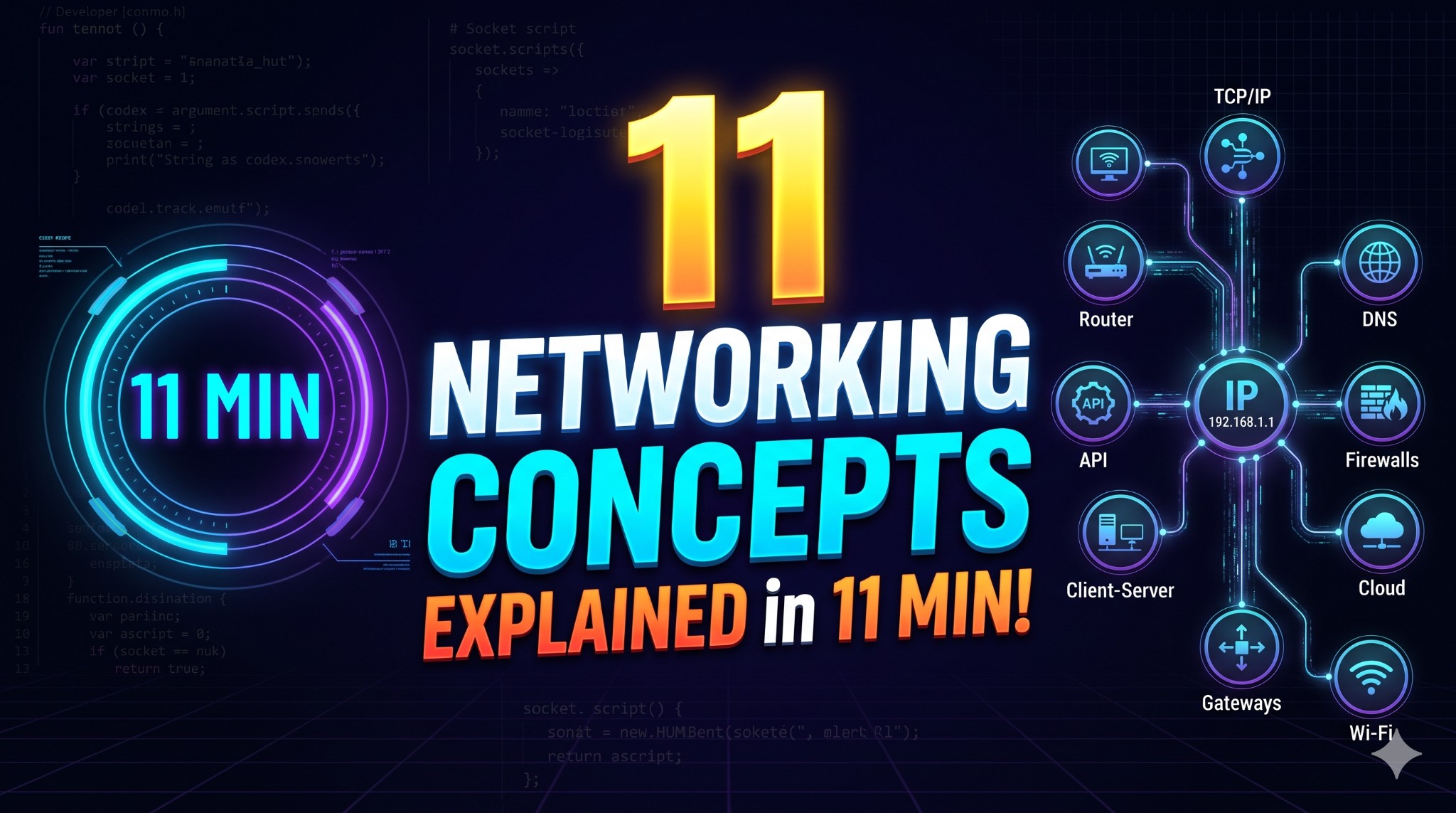
Computer networking is an important part of ALL systems you’ll work on in your engineering career.
While junior developers may get by with writing code, senior engineers are valued for their ability to understand how systems communicate & troubleshoot network problems.
What happens when a network connection fails?
How does data travel between devices & servers?
How do we diagnose slow connections, packet loss & routing problems?
These questions form the foundation of every reliable, high-performing system.
Here are all the key concepts that you need to understand computer networking & become a better engineer:
1. Ethernet
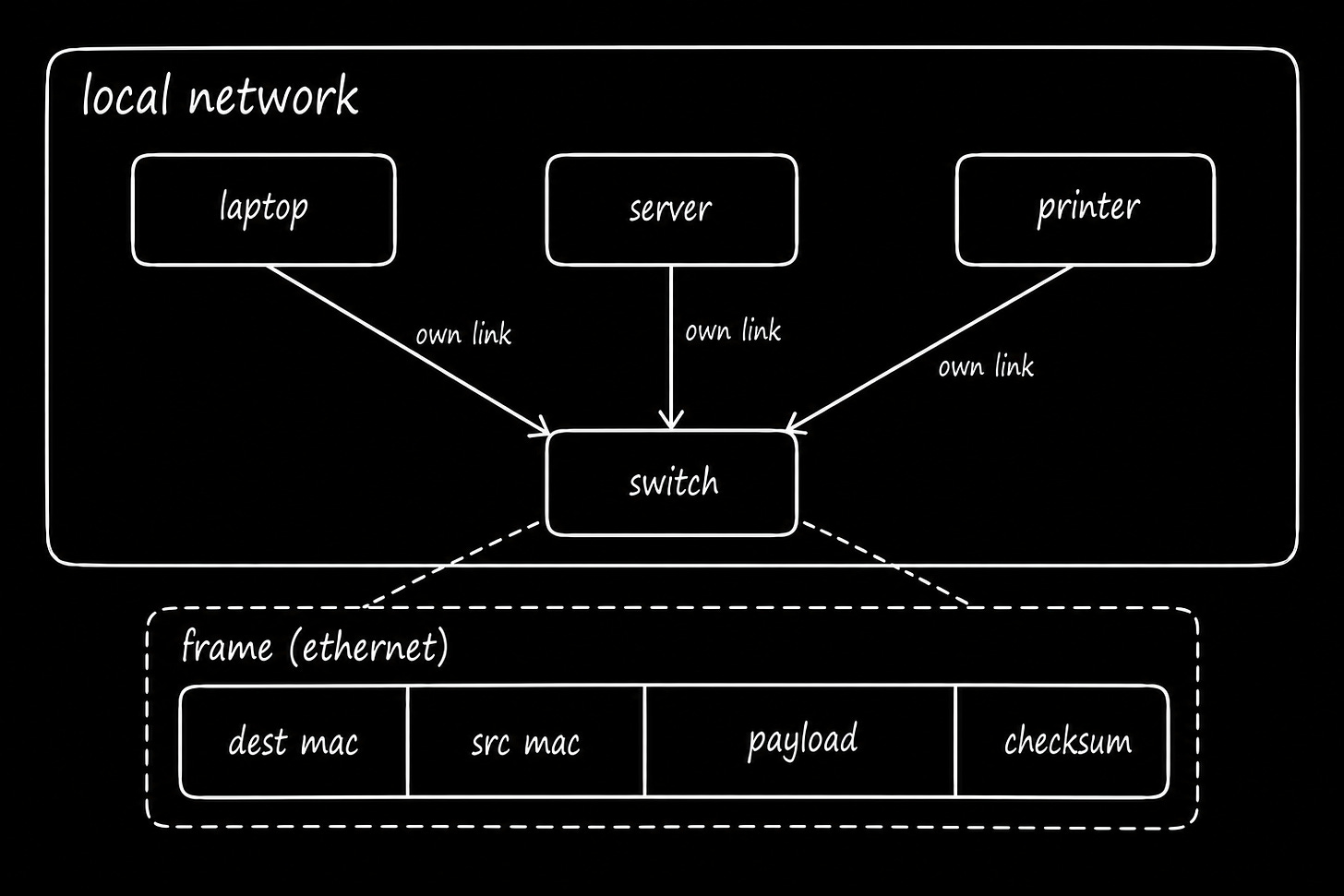
Ethernet is a networking technology that connects devices within a Local Area Network (LAN).
How it works2:
Framing: The sender wraps an IP packet inside an Ethernet frame3.
Addressing: Frame contains source & destination Media Access Control (MAC) addresses.
Transmission: The network interface sends the frame over a physical link.
Switching: Network switches forward frames toward their destinations using MAC addresses.
Error detection: The receiver checks the frame’s Frame Check Sequence (FCS) to detect transmission errors.
Typical Ethernet speeds include 1 Gbps for desktops, 10 or 25 Gbps for servers, and 100+ Gbps for data center networks.
Imagine delivering packages between offices in the same building.
Each package carries the sender’s & recipient’s room numbers. A mailroom reads the destination and forwards the package to the correct office.
2. MAC address
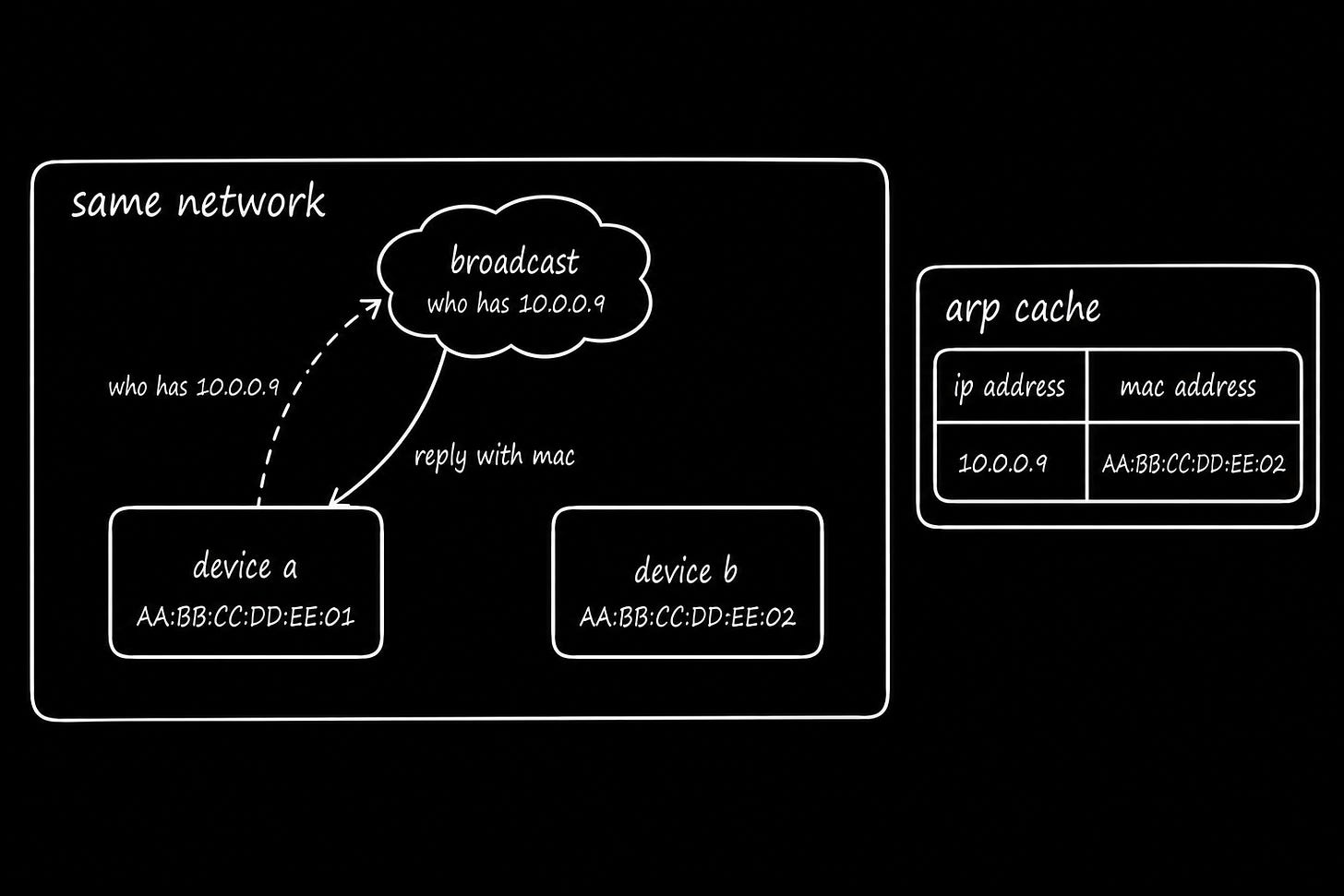
A media access control (MAC) address4 identifies a network card. They help devices communicate within a “local” network.
Every card ships with a 48-bit address, written as six pairs of hexadecimal digits. The first half identifies the manufacturer, while the second half identifies the card.
IP addresses move packets between networks, and MAC addresses move frames within one network. A device learns its neighbor’s MAC address by broadcasting a question through the address resolution protocol (ARP), and then caches that answer.
Think of an IP address as a building’s street address and a MAC address as an apartment number.
3. Network switch
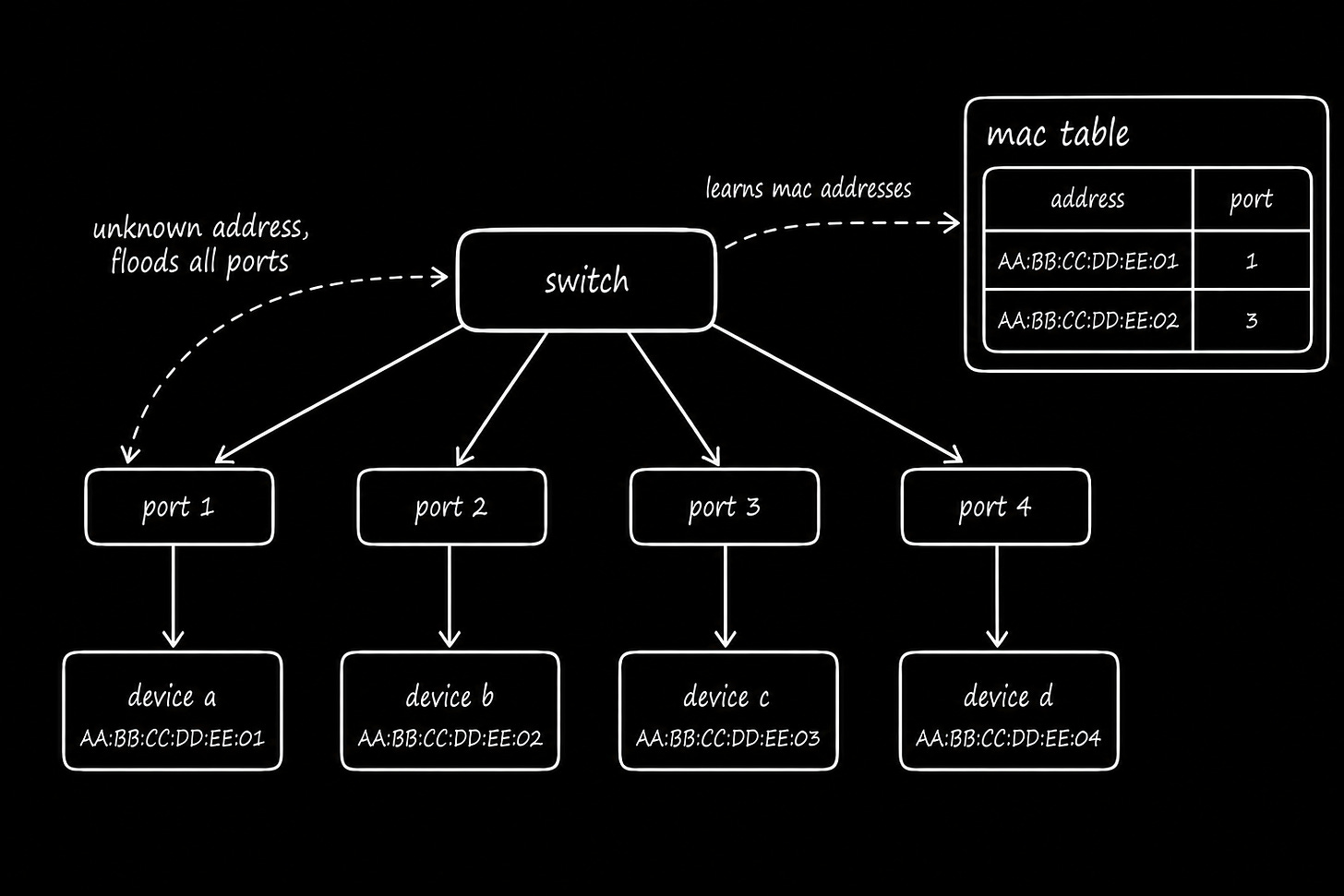
A switch6 forwards frames between devices on the “same” network, using their MAC addresses.
A switch learns devices that are reachable through each port by reading the source MAC address of incoming frames. Then it stores these MAC address-to-port mappings in a forwarding table.7
How it works:
Known destination: The switch forwards the frame through the port associated with the destination MAC address.
Unknown destination: The switch floods the frame through all other ports in the same VLAN until it learns where the destination is located.
A switch forwards Ethernet frames within a local network using MAC addresses, while a router forwards IP packets between networks using IP addresses.
Imagine a mailroom in an office building:
The mailroom learns which office belongs to each employee & delivers letters directly to the correct room. If it doesn’t know the destination, it sends copies to every office until it learns where the recipient is.
4. Wi-Fi
Wi-Fi is a wireless networking technology that uses radio waves to transmit data between devices.
How it works:
Wireless transmission: Devices send & receive data using radio signals.
Channel sharing: Devices use mechanisms such as Carrier Sense Multiple Access with Collision Avoidance (CSMA/CA) to reduce transmission collisions.
Frequency bands: Wi-Fi operates on 2.4 GHz, 5 GHz, and 6 GHz bands.
Signal strength: Devices adjust transmission rates based on signal quality & interference.
Retransmissions: Lost/corrupted frames require retransmission; thus reducing throughput.
The 2.4 GHz band typically provides longer range but has less available capacity & more interference.
The 5 GHz & 6 GHz bands offer wider channels and potentially higher speeds, but their signals have shorter range & weaker penetration through obstacles.
Also devices with poor signal quality transmit at lower data rates and consume more airtime. This reduces the capacity available to other devices sharing the channel.
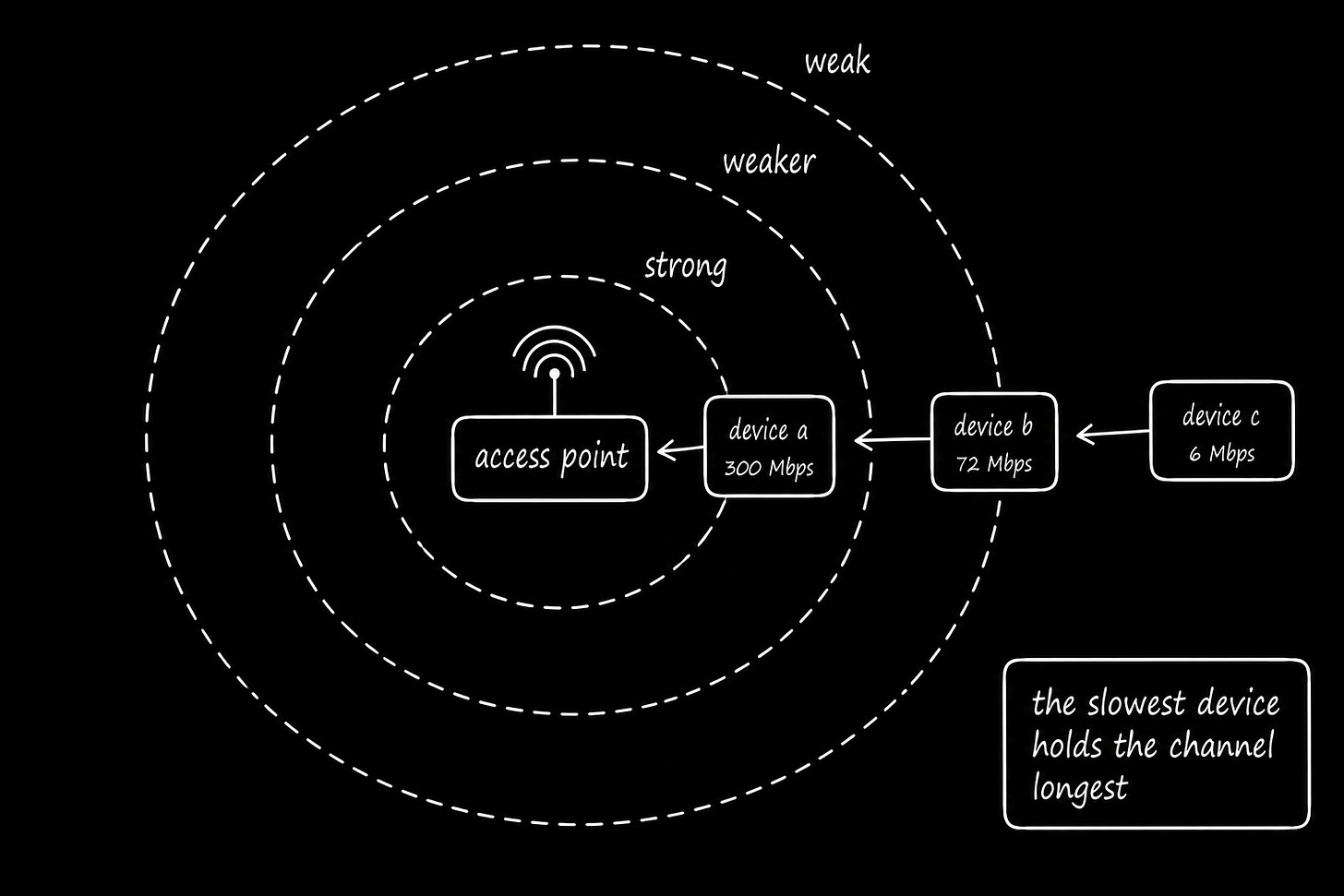
Imagine a room where people take turns speaking.
Everyone listens before talking to avoid interruptions. If someone far away speaks slowly, others have to wait longer to finish.
5. Static IP address
A static IP address is a “fixed” IP address assigned to a device or network interface.
You configure it manually or reserve an address through Dynamic Host Configuration Protocol (DHCP).
A static IP typically remains the same across device reboots as long as its assignment remains valid. Servers, printers, routers & other devices that need predictable network addresses use static IPs.
DNS records, firewall rules & network configurations reference these stable addresses.
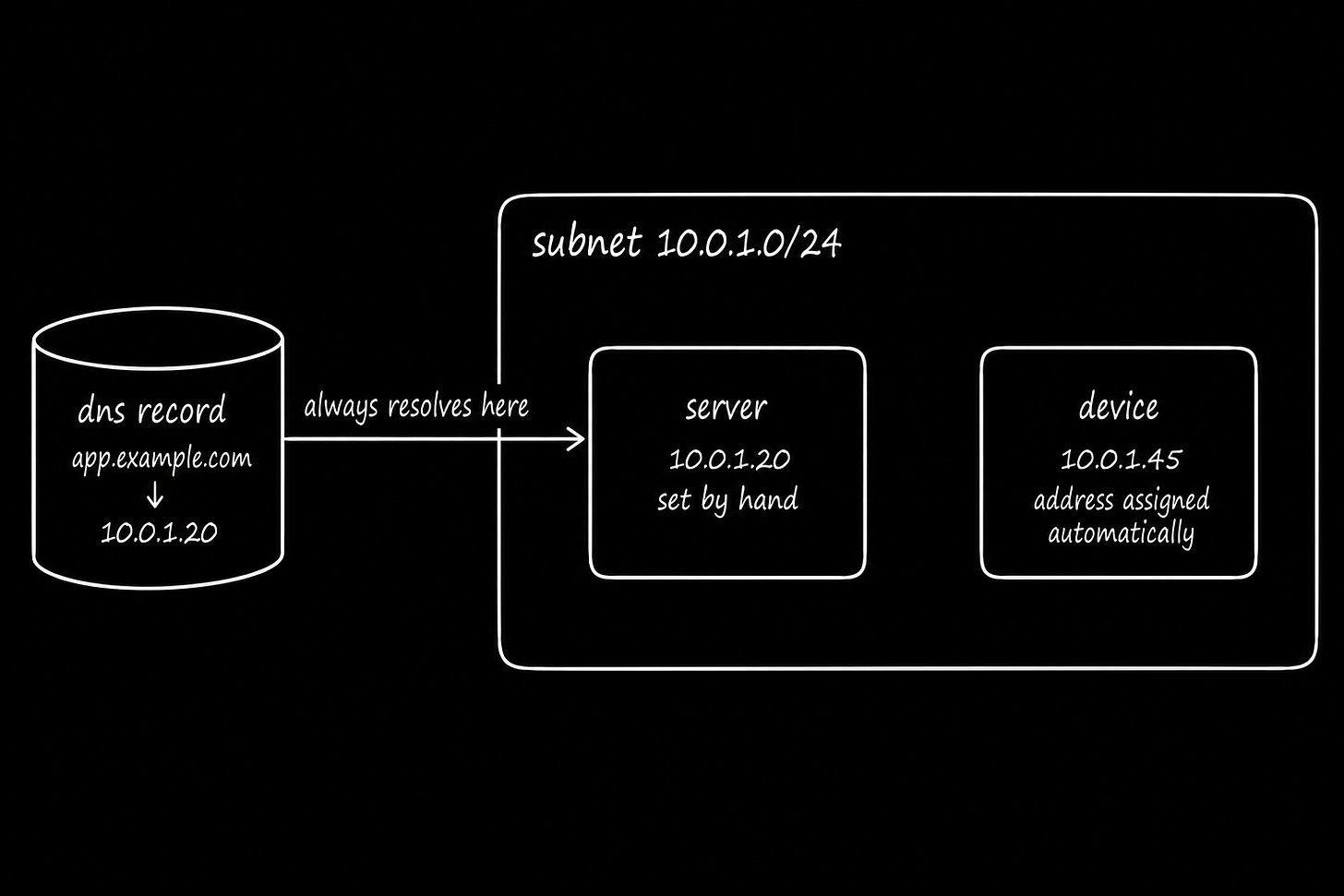
Think of it as a reserved parking space with your name on the sign.
The space stays assigned to you, whether you manage the reservation yourself or someone else manages it.
6. DHCP
Dynamic Host Configuration Protocol (DHCP) automatically assigns IP addresses & other network settings to devices when they join a network.
How it works:
Discover: The device broadcasts a message to find available DHCP servers.
Offer: A DHCP server offers an IP address & network configuration.
Request: The device requests the offered address.
Acknowledge: Server confirms the assignment & grants an IP address lease.
(This process is called DORA.)
Plus, DHCP server provides a subnet mask, default gateway, and Domain Name System (DNS) servers.
Yet each IP address lease has a lifetime.
Devices typically renew leases before they expire. If a lease expires without renewal, the server reassigns the address to another device.

Imagine checking into a hotel:
The receptionist assigns you a room number for your stay. When you check out, the room becomes available for another guest.
7. Default gateway
A default gateway is a router that forwards traffic to destinations outside a device’s local network when “no” specific route exists.
How it works:
Local destination: The device sends traffic directly to another device on the same subnet.
Remote destination: The device forwards traffic to its default gateway.
Packet forwarding: Gateway uses its routing table to forward the packet toward its destination.
A laptop with IP address 192.168.1.10/24 might use 192.168.1.1 as its default gateway.
The gateway typically has an IP address on the same subnet,,, thus allowing the laptop to reach it directly.
An incorrect default gateway prevents a device from reaching “external” networks, even if local communication works.
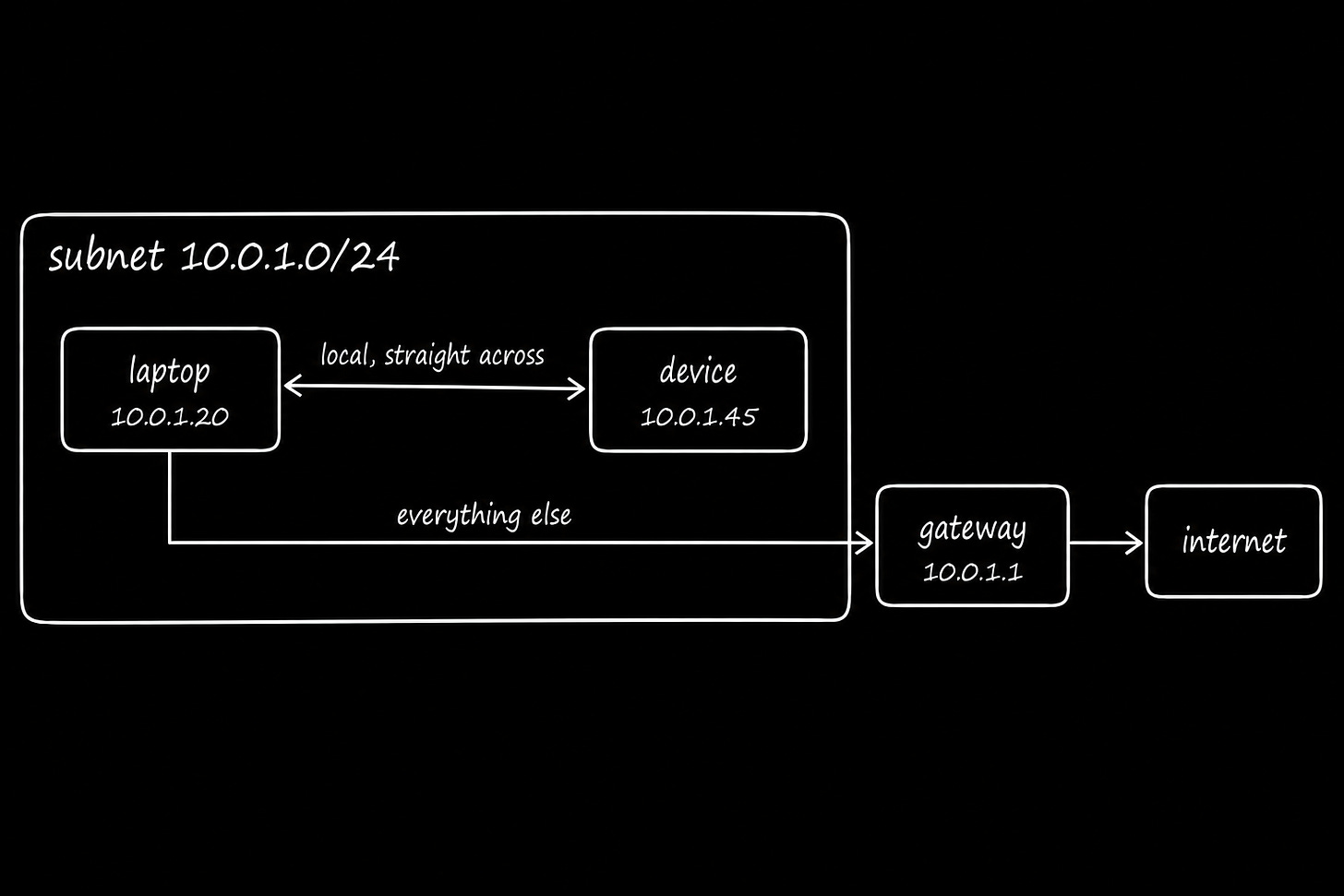
Think of a building with one main exit.
You move between rooms inside the building without leaving. To reach another building, you must use the main exit.
8. Static route
A static route is a (manually) configured entry in a routing table that tells a router where to forward packets.
You specify a destination IP range & an outgoing network interface.
How it works:
Configure a route: Define a destination network, such as
10.0.2.0/24.Specify the next hop: Point the route to another router, such as
192.168.1.1.Forward packets: The router uses the route to forward matching traffic toward its destination.
Yet static routes do not automatically learn new network paths.
If a network path fails, the static route still remains configured. Some implementations detect failures & deactivate/replace the route.
Static routes work well for cloud networking configurations.
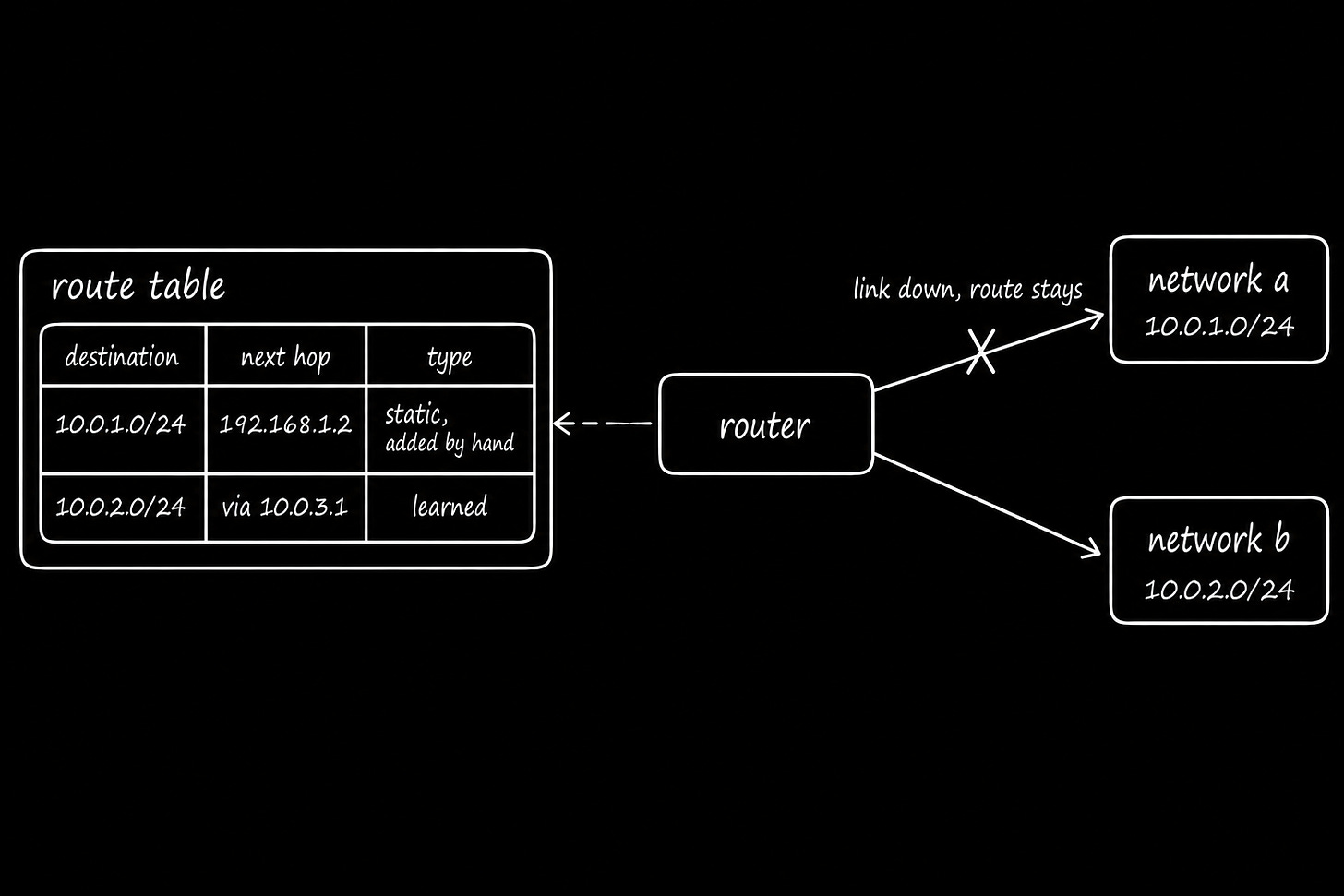
Imagine a road sign directing drivers toward a specific town.
The sign stays in place even when the road closes, unless someone updates it or a traffic management system redirects drivers.
9. OSPF
Open Shortest Path First (OSPF) is a dynamic routing protocol that lets routers automatically discover & update routes within an Autonomous System (AS).
How it works:
Discover neighbors: Routers exchange Hello packets to discover & maintain neighboring routers.
Share topology: Routers flood Link-State Advertisements (LSAs) to share network information within an OSPF area.
Build a network map: Routers in the same area maintain a synchronized link-state database.
Calculate routes: Each router uses Dijkstra’s Shortest Path First algorithm to calculate the lowest-cost paths.
Adapt to failures: When a link fails, routers propagate updated information and recalculate affected routes.
OSPF selects paths based on configurable interface costs.
Bandwidth influences these costs, but administrators could adjust them manually.
Plus, OSPF reroutes traffic after network failures. Convergence time depends on failure detection, topology size & router configuration.
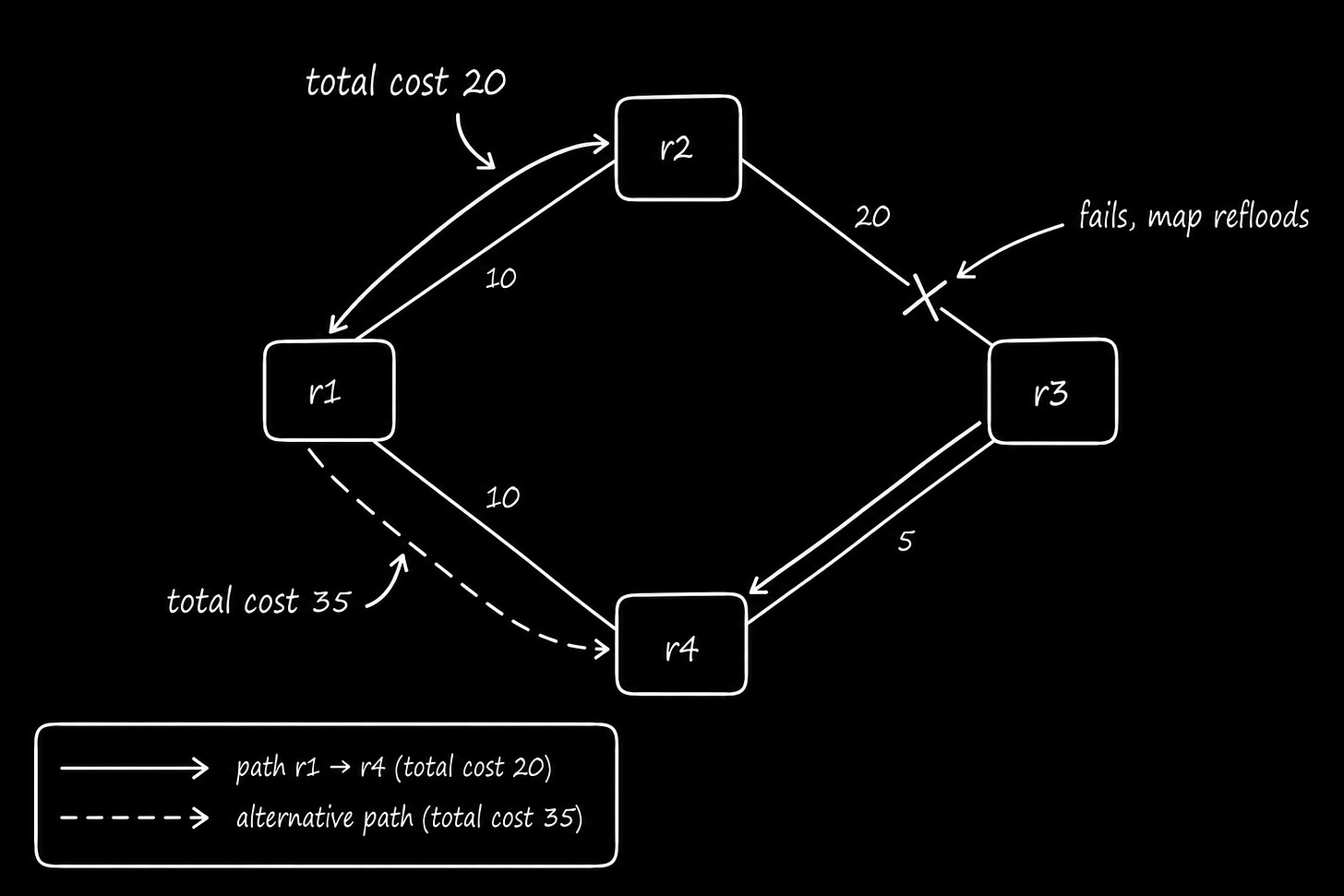
Imagine every driver in a city using a shared road map.
When a road closes, the map updates, and each driver calculates a new route based on the available roads.
10. ICMP
Internet Control Message Protocol (ICMP) carries network error messages & diagnostic information. It helps devices identify problems such as unreachable destinations, expired packet lifetimes, and packets too large for a network link.
How it works:
Destination unreachable: A router or destination host sends an ICMP message when it cannot deliver a packet.
Time exceeded: A router sends an ICMP message when a packet’s Time to Live (TTL) or Hop Limit reaches zero.
Packet too big: ICMP reports when a packet exceeds the supported Maximum Transmission Unit (MTU).
Echo request and reply: Tools such as
pinguse ICMP to test whether a destination responds.
Yet ICMP messages are NOT guaranteed to arrive…
Firewalls, rate limiting & network conditions could block/drop them.
ICMP helps diagnose network problems but does not directly retransmit lost application data or repair failed connections.
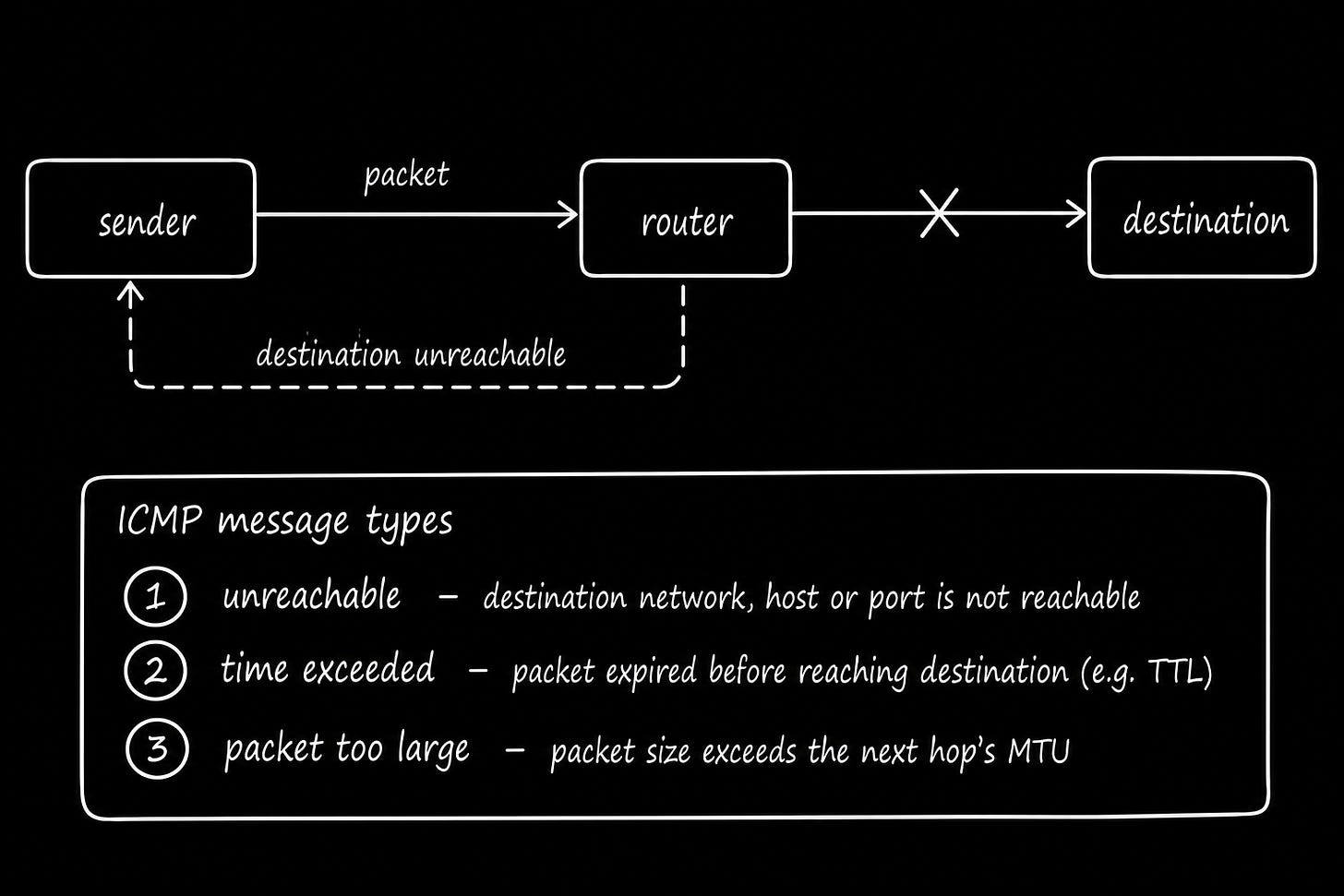
Imagine sending a letter that cannot reach its destination…
The post office returns a notice explaining why delivery failed, such as an invalid address or an unavailable route.
The notice helps you identify the problem, but it does not deliver the original letter.
11. Ping
Ping is a network diagnostic tool that tests whether a destination host responds & measures round-trip time (RTT). It uses ICMP Echo Request & Echo Reply messages.
How it works:
Send request: Ping sends an ICMP Echo Request to the destination.
Receive reply: If the destination responds, it sends an ICMP Echo Reply.
Measure latency: Ping calculates time between sending request & receiving reply.
Track responses: Ping reports round-trip times & percentage of requests without replies.
Repeated tests help identify latency spikes, intermittent connectivity & potential packet loss.
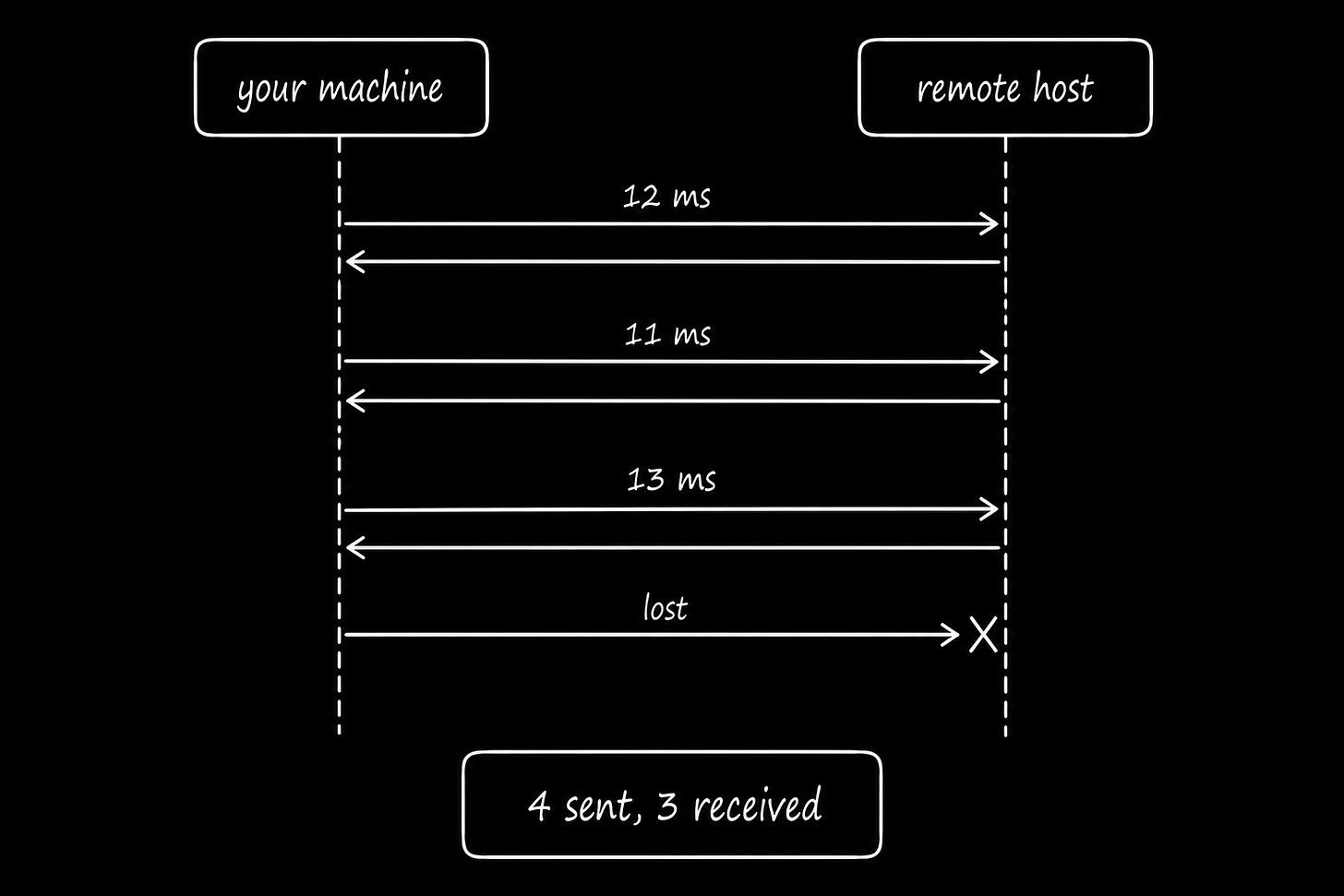
Imagine knocking on a door & timing how long someone takes to answer.
A quick response suggests someone is available. A delayed response takes longer, while silence only means nobody answered.
Final Words
Now you understand the basic networking concepts that help devices communicate, it’s time to explore how they work in real systems.
Look at the apps & networks you use every day and think about what happens behind the scenes.
What happens when a network link fails?
How does your laptop connect to the internet?
How do routers find the right path for packets?
How do engineers diagnose slow or failed connections?
After understanding these concepts, start applying them in your own work.
Use tools like ping, mtr, and tcpdump to explore network behavior. Experiment with routing configurations and troubleshoot connectivity problems.
Remember, every experienced engineer started with the fundamentals. The more you practice, the easier it becomes to understand and troubleshoot complex networks.
Related articles
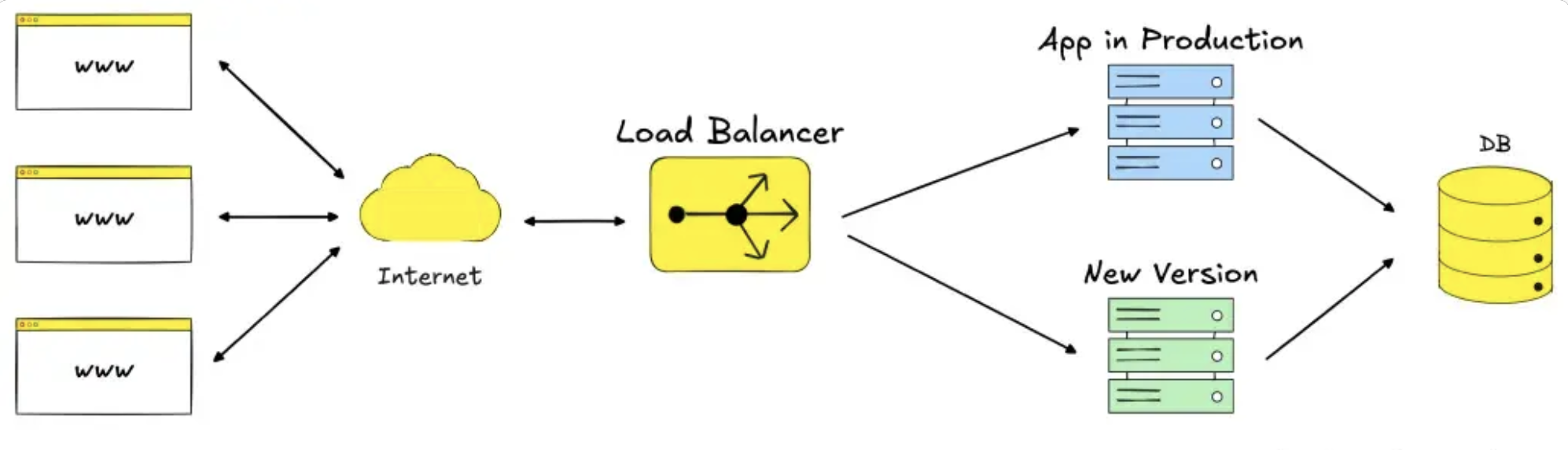
Blue-Green Deployment: Strategy, Benefits, and Best Practices
Learn how Blue-Green Deployment enables zero-downtime releases, faster rollbacks, and safer software updates. Explore its architecture, benefits, challenges, and popular tools.
Load Balancing Algorithms: A Practical Guide
Explore the most important load balancing algorithms, how they distribute traffic, and when to use Round Robin, Least Connections, and other strategies for scalable applications.